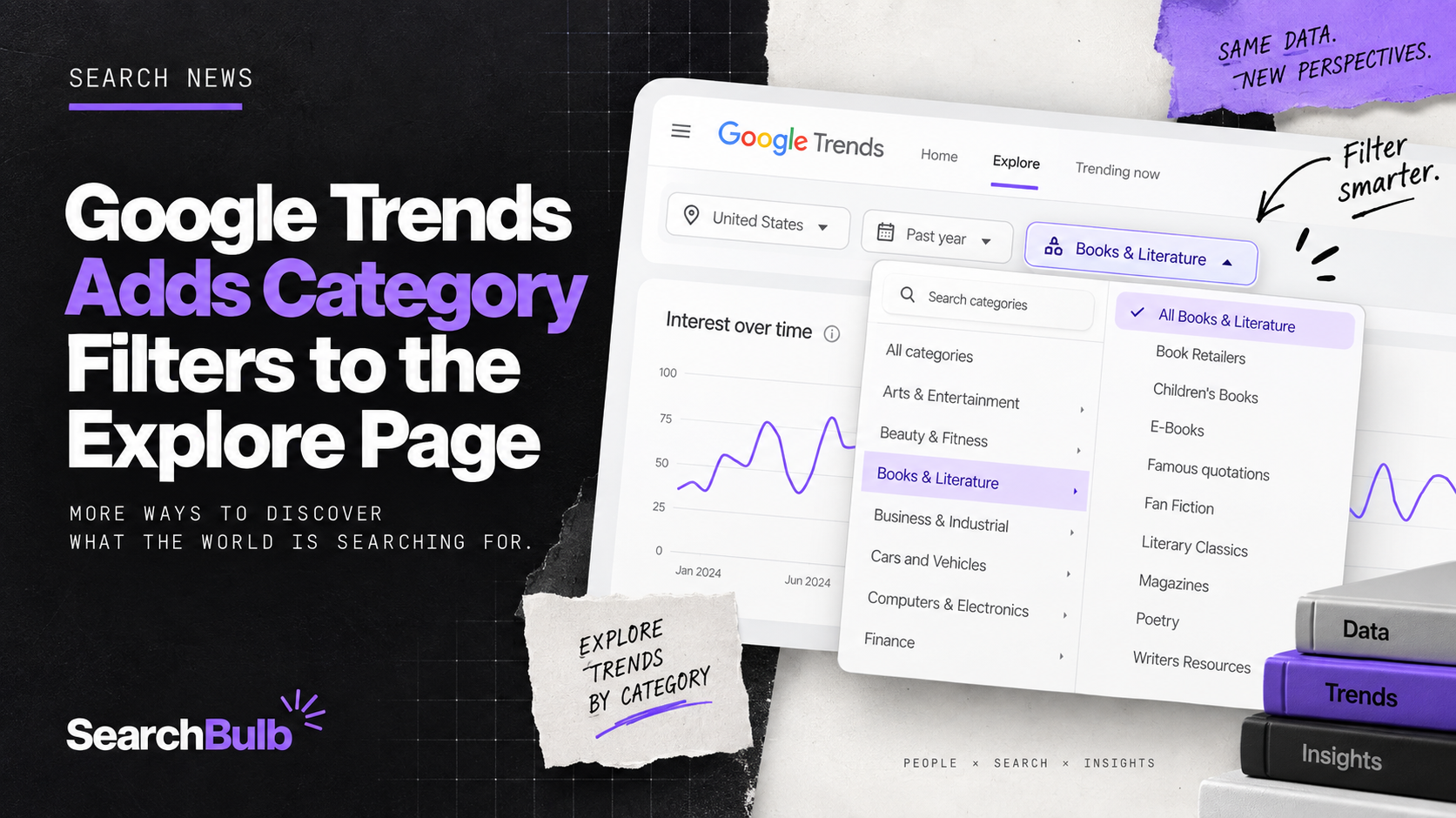
Google announced a small but useful update to Google Trends on 2 September 2026. The Explore page now has a category filter you can use with or without typing a search term.
What Changed
Google Search Central shared the update on LinkedIn, along with a short demo showing the filter applied to a “coffee drinks” search in Switzerland. The category dropdown now sits directly under the search box on the Explore page, with options like Books and Literature, Finance, Games, and Computers and Electronics.
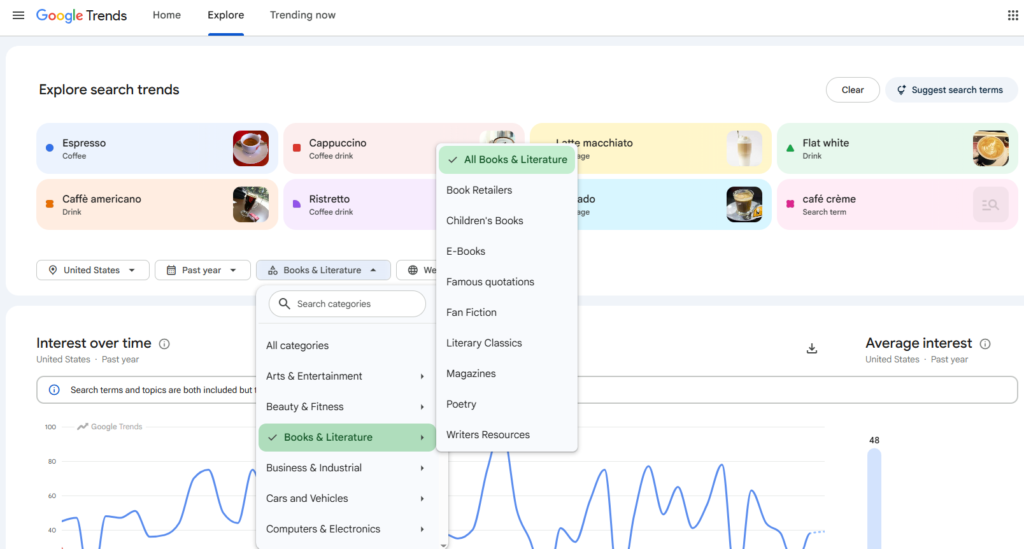
The filter works two ways:
- With a search term. Add a category to narrow your query’s trend data to one specific meaning. Google’s own example is “jaguar,” where a category filter separates the animal from the car brand.
- Without a search term. Leave the search box empty, pick a category, region, and timeframe, and Trends shows you the top and rising searches within that category on its own.
That second mode is the real change here. Before this update, Explore was built around starting with a keyword. Now you can start with a category instead and let Trends tell you what people are already searching for inside it.
Why This Matters for SEO and Content Teams
For anyone doing keyword research or content planning, this flips the usual process. Instead of testing ideas you already have, you can browse a category first and work outward from what’s actually rising in it.
That’s useful for a few common tasks:
- Content gap analysis. Filter to your niche category and see what’s trending that you haven’t covered yet.
- Disambiguating a term. If a keyword has more than one meaning, a category filter shows you which version people actually mean in a given region.
- Early trend spotting. Watching a category over time can surface a rising topic before it shows up in more traditional keyword tools.
One caveat worth repeating: Google Trends shows relative search interest on a 0 to 100 scale, not actual search volume. A term at 100 has the most interest within your selected view, but that doesn’t tell you how many people searched for it. Treat category filter results as a direction to investigate, not a number to plan a content calendar around. Cross-check anything promising against your Google Search Console data or an actual keyword volume tool before committing resources to it.
How to Use It
- Open Google Trends and go to the Explore page.
- Click “All categories” under the search box.
- Pick a category. Add a search term if you want to narrow it further, or leave the box empty to browse the category on its own.
- Set your region and timeframe to match your audience.